¶ IPSC3 POC Radio User Guide
IPSC3 POC turns a supported handheld Android radio into a dedicated push-to-talk radio for the IPSC3 network. It stays connected in the background and is operated using the radio's physical buttons or supported touch menus. Dedicated radios start it automatically; open it from the Android launcher on the F400.
¶ Day and Night Display
| Day mode | Night mode |
|---|---|
 |
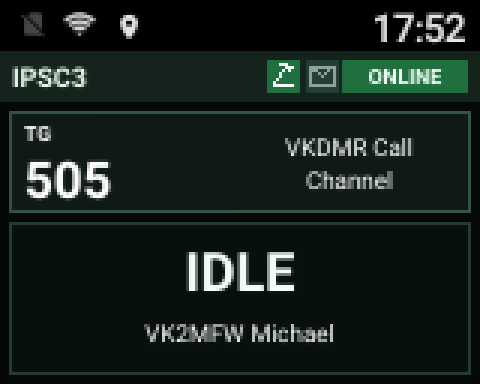 |
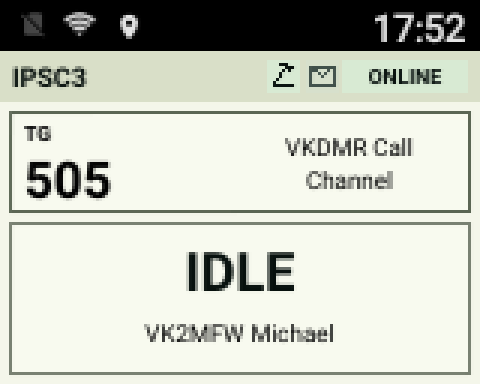
Day mode provides a high-contrast light panel, while Night mode reduces brightness for low-light operation. Automatic mode selects between them using local time and location information.
¶ Supported Radios
| Radio | Platform | Notes |
|---|---|---|
| Retevis L71 | Android API 27+ | Physical PTT, menu, function and volume/channel controls. |
| Udo 8900 | Android 8.1 | Physical PTT, P2 function key and dedicated person buttons. |
| UNIWA F400 | Android 15 | Touch display, hardware PTT, side talkgroup selector and programmable SOS key. |
| Anysecu W2 Pro | Android 11 | Touch display with selectable orientation, green-key menu navigation, microphone keypad, direct talkgroup entry, and configurable handset and microphone Function Keys. |
The installer checks the connected radio model and installs the correct software. IPSC3 POC is intended for these supported radios and will not run as a general phone application.
¶ Installing or Updating a Radio
The current beta is 0.6.2 installer build 80, dated 5 October 2026, with radio firmware build 78 unchanged. The beta download includes Windows and Apple Silicon macOS installers with software for all four supported radios. Build 80 fixes private AllStar account verification and account/channel uploads on non-root Android 8.1 radios such as the Udo/Abree 8900, alongside the initial settings fix from build 79. Download and extract the entire installer ZIP, including its tools folder, then load the existing radio settings and retry AllStar verification/sync. No factory reset or new server authentication keys are needed. The previous Windows settings checksum fix and Broadcast Alert Only feature are retained.
- Download the current IPSC3 POC installer for Windows or macOS.
- Extract the downloaded ZIP file before opening the installer.
- Select the initial IPSC3 server. The installer selects the radio model automatically after detection.
- Enter the operator callsign and add each required Radio ID from the lookup results. The first preset is used initially.
- Connect the powered-on radio by USB when prompted.
- Select Detect connected radio, then select Install.
- Wait for the success message before disconnecting the USB cable.
- Open the installer's Wi-Fi tab to scan for and configure the radio's network when required.
Running the installer again updates an existing radio. The installer can also load and edit its address book and preset SMS messages without a full reinstall. The Talkgroup Filters tab configures scan-only include/exclude lists and complete-radio talkgroup include/exclude lists. Leave a list blank for unrestricted operation; exclude lists take priority. The Wi-Fi tab can show connection status, scan nearby networks, configure open or WPA2 Wi-Fi, and forget networks previously managed by IPSC3. Wi-Fi passwords are handled as one-time requests and are not printed in the installer log.
¶ Basic Operation
| Control | Operation |
|---|---|
| PTT | Press and hold to request the channel. Begin speaking after the permit tone or TX indication, then release when finished. |
| Menu | Open the main menu or select the highlighted item. |
| Exit (main menu) | On F400 and Anysecu W2 Pro, close IPSC3 POC and disconnect until you open it again. On L71 and Udo 8900, return to the radio screen without disconnecting. |
| Red key | Go back one menu level. On the normal radio screen it does not close the app. |
| Up and down | Change volume or talkgroup according to the radio model and selected control mode. |
The main screen shows the selected talkgroup and connection state. During a call it shows the caller's callsign and name when that information is available. The audio meter indicates receive or transmit level.
¶ Retevis L71
- Up and down normally adjust the radio's master volume.
- The volume/channel key changes up and down between volume and talkgroup selection.
- The Function Button performs the action selected in Settings.
¶ Udo 8900
- Up and down always select the previous or next talkgroup.
- The radio's hardware volume control adjusts speaker volume.
- The one-person button opens the Direct Call contacts.
- The two-person button cancels a direct call and returns to the server's call channel.
- The P2 key performs the action selected in Settings and defaults to Day/Night mode.
- In games, the single-person key moves left, the red key moves right, and P1 exits.
¶ UNIWA F400
IPSC3 POC does not open automatically when the F400 starts. Open IPSC3 POC from the normal Android launcher when radio service is required. Its foreground keepalive service starts with the app and continues maintaining the connection while the app is in the background. L71 and Udo 8900 radios retain automatic startup after boot.
¶ Microphone Gain
In 0.6.2 Beta, Settings > Microphone > Mic gain offers 0, -3 and -6 dB adjustments on every model. The same choices are available in web settings. The default remains 0 dB above the radio's fixed calibration. The former L71 +3 dB selection returns to 0 dB on upgrade.
¶ Microphone Equalizer (0.6.2 Beta)
Settings > Microphone > 4-band EQ adjusts transmitted voice at 250, 500, 1000 and 2000 Hz. Each band offers -4 to +4 dB in 1 dB steps. Select a band, choose its gain and confirm with the normal Select button or touchscreen. Back returns to the band list. Enabled turns EQ on or off without losing your adjustments; Reset flat returns all bands to 0 dB. Older settings outside this range move to the nearest new limit.
EQ starts off with all bands flat, so updating does not change your voice. Settings are saved across restarts and take effect on the next PTT press. Matching controls are under Microphone in web settings. RX audio and local tones are not affected. Reduce boosts or mic gain if the TX meter shows clipping.
¶ Anysecu W2 Pro Key Lock
Hold the microphone # key for about 1.5 seconds to lock the controls. Hold it again to unlock. A padlock appears in the top bar while locked. Keypad and app touch controls are blocked, but PTT (including a Bluetooth microphone) and incoming calls still work. Locking does not end an active transmission. It closes menus and returns to the main screen. The radio starts unlocked after restarting the app or rebooting. A short press of # still confirms talkgroup entry when unlocked.
¶ Finding a Talkgroup
The L71 and Udo 8900 provide a fast browser for long talkgroup lists. From the normal radio screen, hold Up or Down for about 600 milliseconds. The TALKGROUPS screen opens at the current talkgroup and scrolls in the held direction. Release the key to stop scrolling.
- Tap Up or Down to move one talkgroup at a time.
- Hold Up or Down again for about 450 milliseconds to resume fast scrolling.
- Press Green to select the highlighted talkgroup.
- Press Red to cancel and return without changing talkgroup.
To search by name, press the Vol/Chan key while TALKGROUPS is displayed. In TG SEARCH, use Up or Down to choose the first character of the talkgroup name and press Green. Choose the required talkgroup from the filtered results and press Green again. Press Red at any stage to return to the previous screen.
¶ Calls and Messages
Direct Call calls a saved contact by Radio ID. Selecting a talkgroup or returning to the call channel cancels direct-call mode. An incoming direct call is shown on the display and remains selected briefly so it can be answered.
SMS can send a preset message to a saved contact or reply to a received message. An envelope icon indicates unread messages. Messages can be read or deleted from the SMS menu. Contacts and preset messages are managed with the Windows or macOS installer.
¶ AllStar Channels (0.6.2 Beta)
Use the installer's AllStar tab to load existing account settings or enter your own node number and password. With the radio connected to the internet, Verify Account checks those details through the radio. Add destination node presets, look up their names, arrange their order and sync them to the radio. The web interface can also add, edit, remove and reorder AllStar channel presets; account credentials remain in the installer.
AllStar nodes appear alongside POC talkgroups. Select a node to link, wait for the connected indication, then use PTT normally. The display shows IAX2 and AllStar has distinct permit and incoming-call tones. Selecting a POC channel closes the link. POC SMS, location updates and incoming private calls continue while an AllStar channel is selected. This beta supports one outgoing AllStar link, not incoming links, a hub or a bridge between AllStar and DMR.
Account verification registers the radio's public network address. If the account is also used by another active AllStar node, that node's address may be replaced. A verified account does not guarantee every destination accepts a link. Ask the destination administrator to check rejected links.
¶ Broadcasts and Channel Mute (0.6.2 Beta)
Settings > Broadcast contains separate News, Emergency and Administrative receive switches. All three start on if no preference has been saved, and your choices are kept after restart or upgrade. Enabled announcements are heard regardless of the selected POC or AllStar channel. Their alert sound mixes over the opening speech; Emergency takes priority over Administrative, then News. Announcements do not interrupt your own transmission.
Alert Only plays the alert sound but not the speech for enabled broadcasts from another channel. Select the broadcast's talkgroup, such as the News talkgroup, if you want to listen. The switch defaults off, preserving normal tones and broadcast audio, and your choice is saved. It applies to all three announcement categories and has a matching web checkbox. Tone volume controls the alert; at zero, an off-channel Alert Only broadcast is silent.
Hold the programmable Function/P2/SOS key for one second and release to mute ordinary channel audio. MUTE replaces the channel number. Hold and release again to restore audio. Short presses keep the selected Function Key action. Enabled broadcasts, private calls, SMS and location reporting remain available while muted. These settings are also available in the web interface.
Diagnostics > Broadcast is for authorized outbound testing. Its News, Emergency and Administrative TX switches start off, are not saved and apply only to the next POC group transmission. The server decides whether a requested category is permitted. Clear flags restores ordinary calls. These switches do not mark private or AllStar transmissions.
¶ BT01 Bluetooth Microphone
A paired BT01 Bluetooth speaker microphone can operate IPSC3 POC on supported radios. Pair the microphone in Android Bluetooth settings before use.
- Press and hold the BT01 PTT button to transmit using the Bluetooth microphone. Release it to stop transmitting.
- The app allows a short Bluetooth audio-routing delay before requesting transmit. Wait for the normal permit indication before speaking.
- Holding the BT01 SOS button runs the action assigned to the radio's programmable Function Key or P2 Key.
- If the microphone disconnects during transmit, the app releases PTT automatically.
¶ Settings
- Location enables or disables position reporting. On the Anysecu W2 Pro it also selects device GPS or saved manual latitude/longitude coordinates.
- Screen saver controls screen sleep and its timeout.
- Display mode selects Day, Night or automatic mode.
- Rotation selects 0, 90 or 270 degree screen orientation on the Udo 8900 and Anysecu W2 Pro.
- Permit Tone enables the indication heard when PTT is granted.
- Tone Volume adjusts indication tones from 0 to 5.
- Microphone contains Mic gain and 4-band EQ. Mic gain retains the calibrated level at 0 dB or reduces it by -3 or -6 dB on every model. The former L71 +3 dB setting returns to 0 dB on upgrade.
- Broadcast controls News, Emergency and Administrative reception and normal-channel mute.
- Function Key or P2 Key selects the shortcut assigned to that radio button.
- Anti Kerchunk suppresses very short received transmissions and can be set to Off, 400 ms or 600 ms.
- Vol/Chan Fallback controls automatic return to volume mode on the L71.
- Loudness controls the Udo 8900 receive-audio pad.
- Enhance AMBE gives non-POC receive audio fuller voice EQ, smooth level control, and peak limiting.
- Web server enables the local status and SMS browser interface and shows its IP address and port.
- About shows the installed version, release, release date, current LAN IP address, copyright and project website.
- Radio ID selects one of the identities provisioned by the installer. Arbitrary Radio IDs cannot be entered on the radio.
¶ Local Web Interface
Enable Settings > Web server, then open the displayed IP
address on port 8080 from a browser on the same local network.
The page shows live radio status and provides access to an automatically refreshed SMS inbox,
installed contacts, preset messages, replies, message deletion, operator
settings, talkgroup filters, AllStar channels and an ordered address book editor. It follows the radio's current
Day or Night display mode.
The Settings page accepts comma-separated talkgroup IDs for Scan include, Scan exclude, TG include and TG exclude. Scan filters apply only in scan mode. TG include is a complete allowlist and TG exclude is a complete denylist for normal group operation; exclude lists take priority. Leave fields blank for unrestricted operation. The radio reconnects automatically after these filters are saved.
The web interface has no PIN and is disabled by default. Any device that can reach the enabled radio can read its messages, send SMS as that radio, edit contacts and change operator settings. Switch it off when remote access is not required. Voice PTT, Radio ID and server changes, credentials, and radio administration are not available through the web interface.
¶ Status Lights
- Green patterns indicate online idle or receive activity.
- Solid red indicates transmit.
- Repeated red patterns indicate the radio is offline.
- A message alert pattern indicates an unread SMS.
Some radios also have a manufacturer-controlled light. This may continue to show its normal hardware indication independently of IPSC3 POC.
¶ Network Alerts and Administration
A network administrator can send a call alert to the radio. The display wakes, an alert tone sounds, and a full-screen call alert is shown briefly.
An administratively disabled radio shows a red DISABLED screen with instructions to contact the network administrators. Transmit, receive, messaging and radio controls remain unavailable until a network administrator re-enables the radio. Presence and enabled location reporting continue so the radio remains visible and manageable on the roaming dashboard. The disabled state is retained if the radio or app is restarted.
¶ Troubleshooting
¶ The radio shows Offline or Error
- Check that WiFi or mobile data is connected.
- Confirm that the selected IPSC3 server is available.
- Open the server menu and reconnect or select another available server.
¶ The radio asks for a firmware upgrade
Download the current installer and run the installation again. The installer selects the correct software for the connected radio.
¶ No location is shown
Confirm that Location is enabled. The first satellite position may require taking the radio outdoors with a clear view of the sky. A previously learned indoor location may be used later when the radio recognises the same local network. On the Anysecu W2 Pro, open Settings > Location to enter a fixed latitude and longitude when device GPS is unsuitable.
¶ No audio is heard
- Increase the radio's master media volume.
- Confirm the radio is online and on the intended talkgroup.
- Use the IPSC3 parrot service to check transmit and receive audio.
IPSC3 POC is intended for authorised amateur-radio operation. Follow the licence conditions and operating requirements that apply in your location.